

When your website outgrows shared hosting or requires enhanced isolation, consistent performance, and greater control, VPS hosting with cPanel is a highly practical upgrade. It offers dedicated resources within a virtual environment and features a control panel that makes managing servers and websites easier for developers, agencies, and expanding businesses.
This guide explains how a VPS with cPanel works, why specs matter, and how to choose the right VPS size using realistic scenarios (including plan-style examples such as 2 vCPU/4 GB RAM and 8 vCPU/16 GB RAM).
What is VPS Hosting with cPanel?
A VPS (Virtual Private Server) is a virtualized slice of a physical server, with allocated resources such as CPU, RAM, and storage. Compared with shared hosting, a VPS generally offers:
- More consistent performance under load
- Better account isolation
- More control over server configuration
cPanel & WHM adds a management layer:
- WHM (Webhost Manager): server-level administration (create accounts, set limits, manage services, migrations, DNS, security controls)
- cPanel: per-account/site management (domains, email, files, databases, backups, SSL)
Together, VPS with cPanel offers a balance of control and usability, especially for multi-site hosting, e-commerce, and businesses seeking operational consistency.
Why VPS Hosting with cPanel Is Often the “Best Next Step.”
Predictable performance for real traffic
Shared hosting can struggle with traffic bursts (campaigns, seasonal peaks, viral posts). A VPS reduces contention and gives you a clearer performance baseline.
Operational simplicity (without living in the CLI)
cPanel standardizes repetitive workflows: SSL, email, databases, DNS, backups, file management, and account provisioning.
Better isolation for multi-site environments
If you run multiple websites (client sites, brand portfolio, or projects), separating them into distinct cPanel accounts can reduce the blast radius when something breaks or is compromised.
Cleaner scaling as the business grows
You can typically scale a VPS vertically (adding RAM/CPU/storage) without rebuilding your hosting stack.
Key Concepts That Determine VPS with cPanel Performance
1) RAM: the first limiter for most cPanel VPS setups
RAM affects:
- web server + PHP worker capacity (concurrency)
- caching efficiency (OPcache/object cache)
- database performance under load
- email services and spam filtering
If the server swaps heavily (uses disk as memory), everything slows down, including admin panels, page loads, cron jobs, and mail delivery.
2) vCPU: determines throughput during peak concurrency
CPU affects:
- PHP execution and dynamic rendering
- database query throughput
- compression, security scanning, and background tasks
For WordPress/WooCommerce and other dynamic apps, CPU headroom is what keeps the site responsive during peak times.
3) NVMe storage: reduces “I/O wait” bottlenecks
Fast storage matters for:
- databases (especially ecommerce)
- file operations (media-heavy sites)
- backups/restores and migrations
4) Account count vs websites
cPanel licensing is typically based on the number of cPanel accounts, not the number of domains. If you host client sites in separate accounts (recommended for isolation), you must align your license tier accordingly. cPanel’s published pricing includes tiers such as Solo (1 account), Admin (up to 5), Pro (up to 30), and Premier (up to 100, with per-account fees beyond that).
Minimum Requirements vs Practical Reality
cPanel publishes OS-specific system requirements and highlights a key operational requirement: the installation/upgrade process requires at least 5 GB of free space in /usr/local/cPanel.
Those baselines help you “run” cPanel, but production workloads need to be sized based on how you use the server: number of sites, traffic, e-commerce, email volume, and backups.
Choosing the Right VPS Size for cPanel
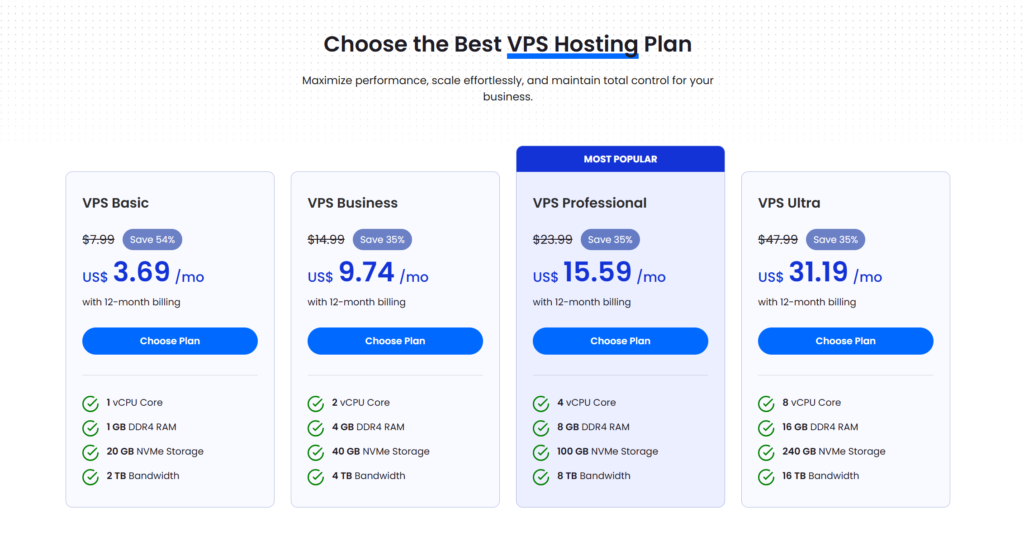
Below is a practical way to map common workloads to typical VPS Hosting resource tiers, as shown below:
Quick sizing table
| Workload profile | Recommended baseline | Why it fits |
| 1–3 small sites (brochure, portfolio, landing pages) | 1 vCPU / 1 GB RAM / 20 GB NVMe | Solid baseline for cPanel + web + light email and backups |
| Content site (WordPress blog, moderate traffic) | 2 vCPU / 4 GB RAM / 40 GB NVMe | Better concurrency, more headroom for plugins, caching, and cron |
| Ecommerce (WooCommerce / dynamic CMS with higher DB activity) | 4 vCPU / 8 GB RAM / 100 GB NVMe | CPU + RAM for checkout spikes, DB reads/writes, and caching |
| Agency/reseller (multiple client sites, separate accounts) | 8 vCPU / 16 GB RAM / 240 GB NVMe | Strong headroom for multi-account isolation + backups + staging |
Real-world examples (how to choose confidently)
- You host 2 WordPress sites + business email, and you want a straightforward upgrade from shared hosting: start at 2 vCPU / 4 GB RAM. This avoids common cPanel VPS pain points, such as slow panels and timeouts under modest load.
- You run a blog with content publishing, image uploads, page builders, and traffic peaks: choose 4 vCPU / 8 GB RAM to support more PHP workers, smoother admin performance, and caching.
- You run WooCommerce or a booking site where every visit triggers database reads and writes, prioritize CPU and RAM. 8 vCPU / 12 GB RAM is a safer floor for performance consistency during spikes.
- You manage 10–30 small client sites and want each site isolated in its own account: plan for more RAM and storage to handle backups, malware scanning, and multiple service workloads—8 vCPU / 16 GB RAM is typically the more stable long-term option.
Operational note: storage needs grow faster than most people expect because cPanel backups, email, logs, and staging environments consume disk space quickly. If you anticipate frequent backups or large mailboxes, choose the larger NVMe tier early.
What to Check Before You Buy a VPS for cPanel
Infrastructure and reliability
- Allocated resources: confirm CPU/RAM are clearly defined (avoid ambiguous “burst-only” setups)
- NVMe/SSD storage: important for DB-heavy sites
- Backups: retention policy, restore method, and whether snapshots are included
- Network policy: bandwidth limits/“unlimited” terms, and traffic shaping (if any)
cPanel/WHM essentials
- License included and tier limit: align with account strategy (single account vs multiple accounts for isolation).
- Supported OS: cPanel supports specific distributions; confirm compatibility before deployment.
- Upgrade headroom: leave disk space for cPanel updates (including the /usr/local/cpanel free space requirement).
Performance Optimization That Actually Moves the Needle
Tune PHP for your traffic pattern
- Enable OPcache
- Use PHP-FPM where appropriate
- Choose current, supported PHP versions for better performance and security
Reduce database pressure
- Add object caching (where supported by your CMS stack)
- Audit plugins/extensions: remove “always-on” heavy features you don’t need
- Monitor slow queries for ecommerce/dynamic sites
Control background load
- Review cron jobs and task frequency
- Schedule heavy backups/scans off-peak
- Keep log growth under control (logs can silently consume disk)
Security Practices for cPanel VPS Hosting
A VPS gives you more control to tighten security rather than leaving defaults.
- Enable HTTPS everywhere: AutoSSL can automate certificate provisioning for common services, reducing renewal risk.
- Harden admin access: SSH keys, restricted IP access for WHM, and 2FA for privileged users
- Least privilege: separate sites into separate accounts when isolation matters; avoid sharing admin credentials
- Backups you can restore: test restores regularly; treat restore testing as a required operational task
FAQ: VPS Hosting with cPanel
Yes. It’s a strong fit when you need more predictable performance, better control over PHP settings, easier SSL/email management, and a smoother path to scaling.
cPanel licensing is commonly tied to the number of cPanel accounts, not domains. If you host many client sites in separate accounts, ensure your license tier matches your account count.
For dynamic sites and ecommerce, yes. NVMe reduces I/O wait and improves database and filesystem responsiveness—especially during backups, peak traffic, and plugin-heavy workloads.
Beyond your website data, plan for backups, email storage, and logs. Also ensure you keep at least 5 GB free in /usr/local/cpanel for cPanel installation and upgrades.
Conclusion
VPS hosting with cPanel is a high-leverage upgrade when you need consistent performance, better isolation, and an administration layer that scales with your business. The best results come from sizing for real usage (traffic + concurrency + email + backups), aligning licensing with account strategy, and enforcing basic security and maintenance discipline. If you choose the right resource tier from the start—2 vCPU/4 GB for small footprints, 4 vCPU/8 GB for growth, and 8 vCPU/12–16 GB for ecommerce and multi-site—you avoid the most common pain points and keep scaling straightforward.