

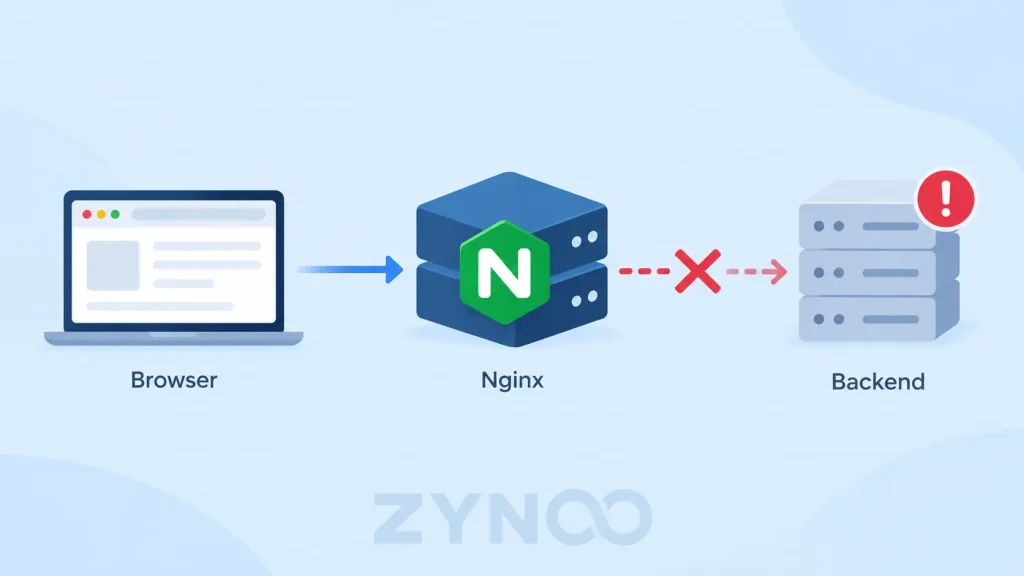
A 502 Bad Gateway error in Nginx usually means Nginx couldn’t receive a valid response from an upstream server, such as PHP-FPM, Node.js, or another backend application.
The most common causes are stopped application services, incorrect upstream ports or sockets, and backend processes that crash or close connections unexpectedly.
Start by checking your Nginx error logs. They often reveal exactly why the connection failed.
This guide walks through seven practical troubleshooting steps for Linux servers running Nginx.
What Causes a 502 Bad Gateway Error in Nginx?
Nginx frequently acts as a reverse proxy, forwarding requests to backend applications and returning their responses to visitors.
If the upstream service fails to respond correctly, Nginx may return HTTP status code 502.
Common causes include:
- Backend services that have stopped or crashed.
- Incorrect upstream IP addresses, ports, or Unix sockets.
- PHP-FPM or application process failures.
- Socket access permission problems.
- Insufficient memory or disk space.
- Invalid or prematurely closed upstream connections.
The following checks assume you have SSH access and permission to administer your Linux server.
1. Check the Nginx Error Logs
Nginx error logs are usually the fastest way to identify a 502 problem.
Connect to your server through SSH and run:
sudo tail -n 50 /var/log/nginx/error.logThis displays the latest 50 log entries.
For live troubleshooting, use:
sudo tail -f /var/log/nginx/error.logReload the affected webpage and watch for new messages.
| Log message | Likely problem |
|---|---|
connect() failed (111: Connection refused) | Backend isn’t accepting connections |
No such file or directory | Configured upstream socket is missing |
Permission denied | Nginx cannot access the socket or resource |
upstream prematurely closed connection | Backend closed the connection unexpectedly |
upstream sent invalid header | Backend returned malformed response headers |
Your hosting configuration may use a different log location.
Don’t change Nginx settings until you’ve identified the likely cause.
2. Check Whether the Backend Service Is Running
A 502 error often occurs because the application behind Nginx has stopped.
For a systemd-managed application service, run:
sudo systemctl status myappReplace myapp with your actual service name.
For PHP-based applications using PHP-FPM, the service might look like:
sudo systemctl status php8.3-fpmThe installed PHP version and service name may differ.
If the service has failed, inspect its logs:
sudo journalctl -u myapp -n 50Check for crashes, missing dependencies, configuration errors, or memory-related failures.
Restart the service only after identifying and addressing the underlying problem.
3. Verify the Upstream Port or Socket
Nginx must forward requests to the correct backend address.
For example, a reverse proxy might contain:
location / {
    proxy_pass http://127.0.0.1:3000;
}
This tells Nginx to forward requests to an HTTP application listening on port 3000.
Check whether something is listening there:
sudo ss -ltnp | grep ':3000'You can also test an HTTP backend directly:
curl -i http://127.0.0.1:3000/If the backend isn’t available, investigate its service configuration before changing Nginx.
Check PHP-FPM Sockets
PHP-FPM commonly uses Unix sockets or TCP ports.
An Nginx configuration might contain:
fastcgi_pass unix:/run/php/php8.3-fpm.sock;Check whether the configured socket exists:
ls -l /run/php/The socket path must match the PHP-FPM pool’s listen setting, and Nginx must have permission to connect.
Important: proxy_pass is used for HTTP upstreams, while fastcgi_pass is used for FastCGI services such as PHP-FPM. They aren’t interchangeable.
4. Check Server Memory and Disk Space
Backend applications may crash or stop responding when the server runs out of resources.
Check memory:
free -hCheck disk space:
df -hCheck running processes:
topIf an application was terminated because of memory pressure, you may find relevant messages in the system journal:
sudo journalctl -k --since "1 hour ago"Look for out-of-memory events or process termination messages.
If disk space is exhausted, identify what’s consuming it before deleting files.
5. Check Socket Permissions and Application Logs
Sometimes the backend is running, but Nginx cannot communicate with it.
For Unix sockets, inspect ownership and permissions:
ls -l /run/php/Also check the directories leading to the socket if the logs report a permission error.
The correct permissions depend on the Nginx worker user and backend service configuration.
Avoid applying broad permissions such as chmod 777. Instead, adjust the relevant service or pool configuration so authorized processes can access the socket.
If the error logs report that the upstream closed its connection prematurely, inspect the backend application’s logs for crashes, exceptions, or failed requests.
6. Test Your Nginx Configuration
Incorrect proxy settings or configuration changes can also disrupt upstream communication.
Before applying changes, validate the Nginx configuration:
sudo nginx -tIf the test succeeds, reload Nginx:
sudo systemctl reload nginxReloading applies valid configuration changes without unnecessarily restarting the service.
If the test fails, correct the reported configuration error first.
Don’t increase proxy timeouts or buffer limits blindly. These adjustments won’t fix a stopped backend, incorrect socket, or connection refusal.
7. Confirm That the 502 Error Is Fixed
After addressing the underlying issue, test the affected URL:
curl -I https://example.comReplace example.com with your actual domain.
A successful request typically returns an appropriate HTTP status such as 200 OK, although redirects and other valid responses may produce different codes.
Also open the website in your browser and review the Nginx error logs again.
If the error returns under load, monitor the backend service and resource usage while reproducing the problem.
How to Prevent Nginx 502 Errors
Not every backend failure is preventable, but good server administration reduces avoidable outages.
- Monitor Nginx and backend service health.
- Review application logs after deployments.
- Configure appropriate service recovery policies.
- Monitor memory, storage, and connection usage.
- Validate configuration changes before applying them.
- Test applications directly before routing traffic through Nginx.
If an application requires more resources, measure its actual usage before deciding to upgrade server capacity.
Frequently Asked Questions
It means Nginx, acting as a gateway or proxy, received an invalid response from an upstream server. The cause is often a stopped backend service or an upstream connection problem.
Not necessarily. Restarting or reloading Nginx won’t fix an unavailable application, incorrect backend port, or missing PHP-FPM socket.
A 502 error indicates an invalid response from the upstream server, while a 504 error means the gateway didn’t receive a response from the upstream server within the timeout period.
Yes. Memory exhaustion can cause backend processes to crash or be terminated, leaving Nginx unable to communicate with them.
No. Other gateways, proxies, CDNs, and load balancers can also return HTTP 502 errors.
Conclusion
Fixing a 502 Bad Gateway error in Nginx starts with identifying why the upstream application isn’t responding correctly.
Check Nginx error logs first, confirm the backend service is running, and verify the configured port or socket. Then investigate resource limits, permissions, and application failures.
In most cases, identifying the specific upstream failure is more effective than repeatedly restarting Nginx or changing timeout settings.