
A 504 Gateway Timeout error occurs when a server acting as a gateway or proxy doesn’t receive a response from another server in time. It commonly happens when a website’s backend application is slow, overloaded, or experiencing connectivity problems.
If you’re visiting a website, try refreshing the page after a short interval. If you manage the website, start by checking your server and application logs to identify where the delay occurs.
Here are seven practical ways to troubleshoot the error.
What Causes a 504 Gateway Timeout Error?
Many websites use multiple servers or services to handle requests.
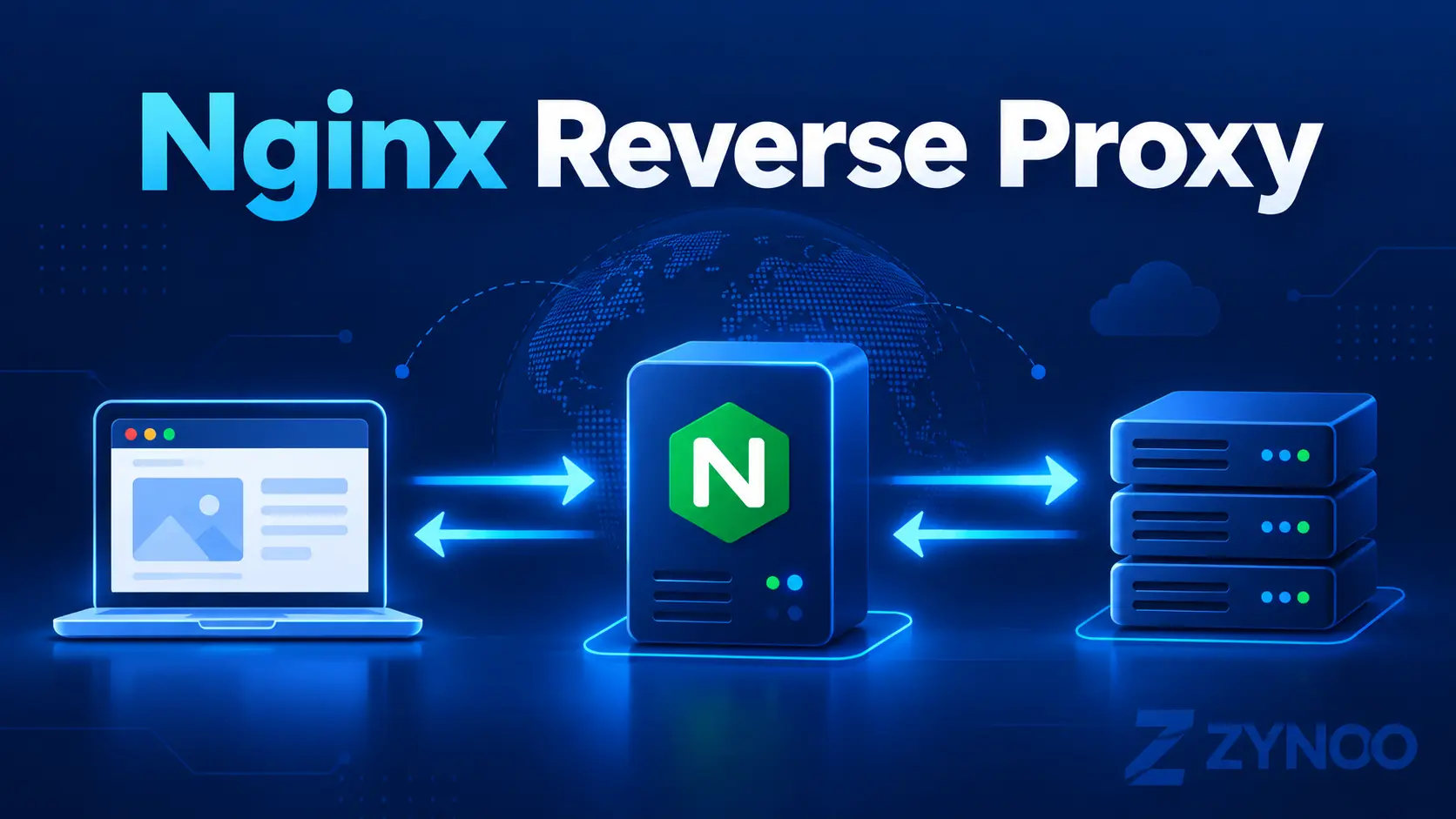
For example, a browser may connect to Nginx or a CDN, which then forwards the request to an application server.
If that application takes too long to respond, the gateway may return a 504 error instead of the requested page.
Common causes include:
- Overloaded or unresponsive application servers.
- Slow database queries or external API requests.
- Insufficient CPU, RAM, or application workers.
- Network problems between the gateway and backend.
- Proxy or application timeout limits.
- Misconfigured CDN or hosting infrastructure.
A 504 error is usually a server-side problem, although connection-specific issues can sometimes affect individual visitors.

1. Refresh the Website and Check Its Availability
If you’re simply visiting a website, wait briefly and refresh the page.
Temporary server overload or an interrupted backend request may resolve without intervention.
You can also try another browser or network to see whether the problem is specific to your connection.
If the error affects everyone, the website owner or hosting provider will generally need to investigate.
Avoid repeatedly submitting payments, orders, or forms. A backend operation may have completed even if the gateway timed out before returning its response.
2. Check Server and Application Logs
If you manage the server, log files are the best place to start.
For Nginx, check the error log:
sudo tail -n 50 /var/log/nginx/error.logLook for messages similar to:
upstream timed out (110: Connection timed out)This indicates that Nginx waited too long for an upstream operation.
Next, check the application logs to determine why the backend responded slowly.
You can also inspect a systemd-managed service:
sudo journalctl -u myapp -n 50Replace myapp with your actual service name.
3. Check CPU, RAM, and Disk Usage
A busy server may struggle to process requests within the gateway’s timeout period.
Check memory:
free -hCheck disk space:
df -hMonitor processes:
topLook for sustained resource pressure, exhausted memory, full filesystems, or unusually busy processes.
These results don’t automatically prove why the request timed out, but they can help identify performance bottlenecks.
4. Investigate Nginx and Upstream Timeouts
If Nginx acts as your reverse proxy, check whether the upstream application responds within the configured timeout limits.
For HTTP backends, a configuration may include:
location / {
    proxy_pass http://127.0.0.1:3000;
    proxy_read_timeout 60s;
}
The proxy_read_timeout setting controls how long Nginx waits between successive reads from the backend, not the total duration of the entire request.
Before increasing it, test the backend directly:
curl --max-time 15 -i http://127.0.0.1:3000/Replace the address with your application’s actual endpoint. Some application routes may require authentication or return a valid response other than HTTP 200.
If the application itself is slow, increasing Nginx’s timeout may only hide the underlying problem.
When a longer timeout is genuinely justified, review the application’s timeout settings too. PHP-FPM and FastCGI-based applications use different Nginx directives from HTTP proxy backends.
After configuration changes, validate Nginx before reloading:
sudo nginx -t
sudo systemctl reload nginx
Only reload if the configuration test succeeds.
5. Check Cloudflare or Your CDN
If your website uses Cloudflare or another content delivery network, determine whether the timeout originates at the CDN or your origin server.
Check your CDN‘s error information and compare it with your origin server logs.
A 504 may come from an upstream service behind your origin server, or from another layer in the request path.
Cloudflare has its own connection and response timeout behavior, so increasing an Nginx setting won’t necessarily override a CDN-imposed limit.
Avoid disabling security or caching features without identifying the source of the timeout.
6. Investigate Slow Database Queries and External APIs
Sometimes the web server is healthy, but the application is waiting on another service.
Common examples include:
- A database query that takes too long.
- An external API responding slowly.
- Exhausted application worker pools.
- Background jobs competing for resources.
- Database locks delaying requests.
Review application logs, slow-query logs, and service metrics to identify the delay.
If a database query is responsible, investigate indexing, query execution plans, and connection usage.
For external API calls, configure reasonable timeouts and error handling. Long-running jobs may be better handled asynchronously when the application supports it.
7. Contact Your Hosting Provider
If you can’t resolve the 504 Gateway Timeout error, contact your hosting provider with the evidence you’ve collected.
Include the affected domain, when the problem started, whether it happens intermittently, and any relevant log messages.
Mention recent changes to your application, database, CDN, or reverse proxy configuration.
A hosting provider can help investigate resource restrictions and infrastructure problems outside your administrative access.
502 vs. 504 Gateway Errors: What’s the Difference?
These errors are related, but they indicate different upstream problems.
| Error | Meaning |
|---|---|
| 502 Bad Gateway | A gateway received an invalid response from an upstream server |
| 504 Gateway Timeout | A gateway didn’t receive the required upstream response in time |
For example, an application that closes a connection unexpectedly may result in a 502 error, while an application that takes too long to respond may cause a 504.
How to Prevent 504 Gateway Timeout Errors
Not every timeout can be prevented, but good infrastructure management helps reduce them.
- Monitor application response times and resource usage.
- Investigate slow database queries.
- Use appropriate caching for frequently requested content.
- Configure sensible upstream and application timeouts.
- Monitor backend services and worker availability.
- Test major configuration changes before deploying them.
Increasing timeout limits should be a considered decision, not the first troubleshooting step.
Frequently Asked Questions
Yes. HTTP 504 is a server-side status code indicating that a gateway or proxy didn’t receive a timely response from an upstream server.
Usually not. Browser cache doesn’t resolve an overloaded or unresponsive backend server. However, testing another browser or connection can help rule out localized issues.
It can be. Temporary overload or a slow backend request may resolve quickly, while recurring timeouts indicate a problem requiring investigation.
Yes. WordPress and other applications can experience 504 errors when database queries, PHP processing, or upstream services take too long.
Only when the application legitimately requires more time and the other infrastructure limits support it. First determine why the backend response is delayed.
Conclusion
A 504 Gateway Timeout error means a gateway waited too long for an upstream server to respond.
Visitors can check whether the problem is temporary, while administrators should examine logs, server resources, application performance, and proxy settings.
The most reliable fix is to identify the source of the delay rather than blindly increasing timeout limits or restarting services.