
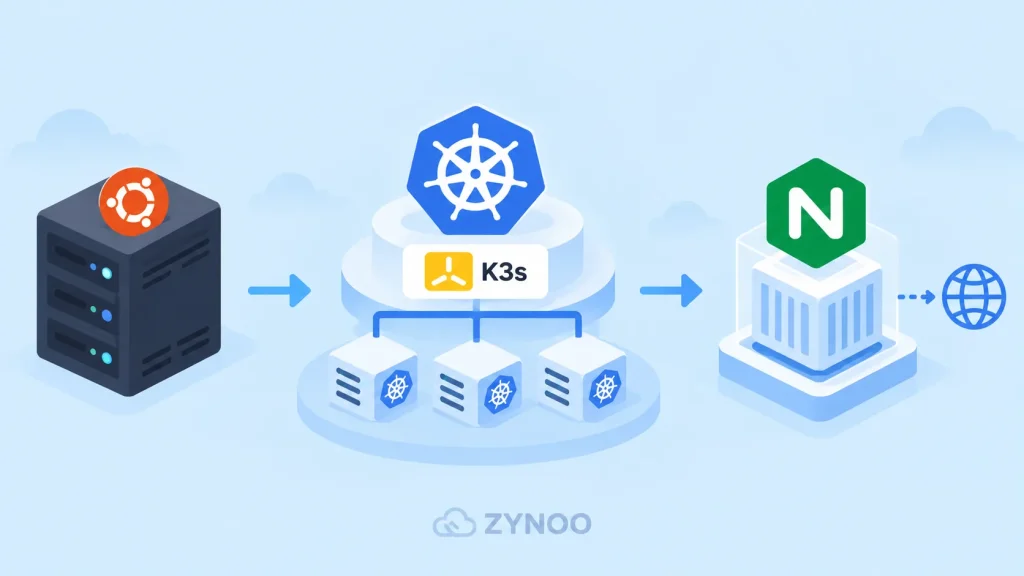
Want to install Kubernetes on Ubuntu without configuring a complicated cluster from scratch? K3s is a lightweight Kubernetes distribution that simplifies the process, making it a practical choice for developers learning Kubernetes on a VPS.
In this guide, you’ll learn how to install Kubernetes on Ubuntu 24.04 using K3s, create a single-node cluster, deploy an Nginx application, and verify that everything works.
You won’t need to install Docker or configure a separate container runtime.
What Is K3s, and Why Use It?
K3s is a lightweight, CNCF-certified Kubernetes distribution designed to reduce the complexity of installing and operating Kubernetes.
It packages essential components, including a container runtime and cluster networking, into a simplified installation.
Unlike a traditional Kubernetes installation using kubeadm, K3s handles much of the initial configuration automatically.
A single-node K3s installation is a functional Kubernetes cluster, making it suitable for development, testing, and learning.
If you’re unfamiliar with Kubernetes concepts such as Pods and Deployments, read our What Is Kubernetes? guide first.
Prerequisites
Before starting, you’ll need:
- A server running Ubuntu 24.04 LTS.
- SSH access with sudo privileges.
- At least 2 CPU cores and 2 GB RAM.
- Preferably 4 GB RAM or more for a comfortable learning environment.
- Sufficient SSD storage and internet access to download container images.
K3s officially lists 2 CPU cores and 2 GB RAM as the minimum requirements for a server node. Actual workload requirements can be higher.
Security note: Keep SSH accessible and restrict access to the Kubernetes API on port 6443. You don’t need to open that port publicly for this tutorial. If you’re using UFW or another firewall, review the official K3s networking requirements before installation.
Step 1: Update Your Ubuntu Server
Connect to your Ubuntu server using SSH and refresh its package information:
sudo apt update
sudo apt upgrade -y
Check the Ubuntu version:
lsb_release -aYou should see Ubuntu 24.04 LTS.
Reboot if required by system updates, then reconnect through SSH.
K3s will install its own container runtime, so Docker Engine is not required.
Step 2: Install Kubernetes on Ubuntu Using K3s
K3s provides an official installation script.
The standard installation command is:
curl -sfL https://get.k3s.io | sh -This downloads and runs the K3s installer. Review the official installation instructions and installer before running it, especially on a production server.
The installation configures K3s as a systemd service and installs Kubernetes management utilities.
Once the process finishes, check the service:
sudo systemctl status k3sLook for:
Active: active (running)Press q to exit the status display.
If the service is running, your Kubernetes installation has started successfully.
Step 3: Verify Your Kubernetes Cluster
K3s includes its own kubectl command-line tool for managing Kubernetes resources.
Run:
sudo k3s kubectl get nodesAfter the cluster initializes, you’ll see output similar to:
NAME        STATUS   ROLES                  AGE   VERSION
ubuntu-vps  Ready    control-plane,master   2m    v1.xx.x+k3s1
Your hostname and Kubernetes version will differ.
The important value is Ready, indicating that Kubernetes considers the node available for workloads.
Next, check the system Pods:
sudo k3s kubectl get pods -AThis lists Pods across all namespaces, including Kubernetes system services.
Some components may take a little time to initialize. Check again if they’re still starting.
Now that you’ve used K3s to install Kubernetes on Ubuntu, your cluster is ready to run containerized applications. Let’s deploy Nginx to confirm everything works.
Step 4: Deploy Your First Application
Now that the cluster is running, let’s deploy a simple Nginx web server.
Create a Deployment:
sudo k3s kubectl create deployment demo-nginx --image=nginx:stableKubernetes creates a Deployment that manages an Nginx container.
Check its progress:
sudo k3s kubectl get deploymentsWait until the Deployment shows one available replica.
You can also inspect its Pod:
sudo k3s kubectl get podsThe Pod should eventually display a Running status with its container ready.
If you see ContainerCreating, the container image may still be downloading.
Step 5: Create a Kubernetes Service
A Kubernetes Service provides a stable network endpoint for accessing an application, even if its Pods are replaced.
Expose the Nginx Deployment internally:
sudo k3s kubectl expose deployment demo-nginx --type=ClusterIP --port=80Check the Service:
sudo k3s kubectl get servicesYou should see a Service named demo-nginx, with a ClusterIP address and port 80.
The ClusterIP type makes the application available inside the Kubernetes cluster. It doesn’t expose Nginx directly to the public internet.
Step 6: Test Your Nginx Application
We’ll use Kubernetes port forwarding to test the application without configuring a public load balancer.
Run:
sudo k3s kubectl port-forward service/demo-nginx 8080:80Leave this SSH session open.
The command forwards port 8080 on the server’s loopback interface to port 80 of the Nginx Service.
Open a second SSH connection to the same server and run:
curl http://127.0.0.1:8080You should receive HTML containing the default Nginx welcome page.
Success! You’ve installed Kubernetes on Ubuntu using K3s, deployed a containerized application, and accessed it through a Kubernetes Service.
Press Ctrl+C in the first session to stop port forwarding.
This test only verifies local access. Publishing an application publicly requires additional networking, DNS, TLS, and security configuration.
Common K3s Installation Problems
K3s Service Won’t Start
Check the service logs:
sudo journalctl -u k3s -n 50Look for permission problems, network issues, or failed components.
Kubernetes Node Shows NotReady
Check the node details:
sudo k3s kubectl describe nodeInvestigate the reported conditions, system resource usage, and networking.
Nginx Pod Isn’t Running
Inspect the Pod:
sudo k3s kubectl get podsThen review the Deployment’s events:
sudo k3s kubectl describe deployment demo-nginxImage download failures, insufficient resources, or cluster networking problems can prevent Pods from starting.
Port Forwarding Doesn’t Work
Make sure the Nginx Pod is ready and the Service exists.
Remember that the port-forward command must remain running while you test the application from the second SSH session.
Do You Need Docker to Run K3s?
No. K3s includes containerd, a container runtime used to execute Kubernetes workloads.
You can deploy compatible container images, including images built with Docker, without installing Docker Engine on the K3s server.
What Should You Do Next?
Your single-node cluster is suitable for experimenting with Kubernetes concepts, but it isn’t automatically a production-ready, highly available environment.
Before deploying business-critical applications, plan for:
- Cluster access control and security updates.
- Persistent storage and backup procedures.
- Monitoring and resource limits.
- Secure application exposure with HTTPS.
- Recovery from node or server failure.
Remember that a single-node cluster still depends on one physical or virtual machine. Kubernetes cannot eliminate that single point of failure.
Frequently Asked Questions
K3s is a certified Kubernetes distribution. It implements Kubernetes functionality while simplifying installation and reducing operational overhead.
Yes. You can run K3s on a Linux VPS with sufficient CPU, RAM, storage, and administrative access.
K3s can be used in production, but reliability depends on the cluster architecture, capacity, networking, security, and backup configuration.
Yes. K3s provides an uninstall script, but removing it can delete cluster resources and local workload data. Back up anything important before uninstalling.
Conclusion
You now know how to install Kubernetes on Ubuntu using K3s, verify your single-node cluster, and deploy an Nginx application.
With K3s, you’ve created a working single-node Kubernetes environment, deployed Nginx, exposed it through a Service, and verified the application using port forwarding.
You can now explore Deployments, scaling, configuration, and cluster management as your experience grows.