
Setting up a World of Warcraft server involves installing server-emulation software, configuring a database, preparing game data, and connecting the different server components. One of the best-known open-source projects for studying this process is AzerothCore, which emulates the World of Warcraft: Wrath of the Lich King 3.3.5a server environment.
AzerothCore can run on Linux, Windows, and macOS. In this guide, we’ll focus on installing it on Ubuntu 26.04 LTS, using the project’s current source-code installation process.
We’ll cover the essential commands, database configuration, networking, and common installation problems.
Important: AzerothCore is an independent open-source project, not an official Blizzard server. Blizzard’s licensing terms restrict unauthorized emulation and connections. This guide is intended for technical education and environments where you have the necessary rights and permissions. It does not provide game clients, proprietary assets, or permission to operate an unauthorized service.
What Is AzerothCore?
AzerothCore is an open-source MMORPG server emulator based on the Wrath of the Lich King 3.3.5a environment.
It recreates server-side systems such as character management, authentication, quests, creatures, and game-world interactions.
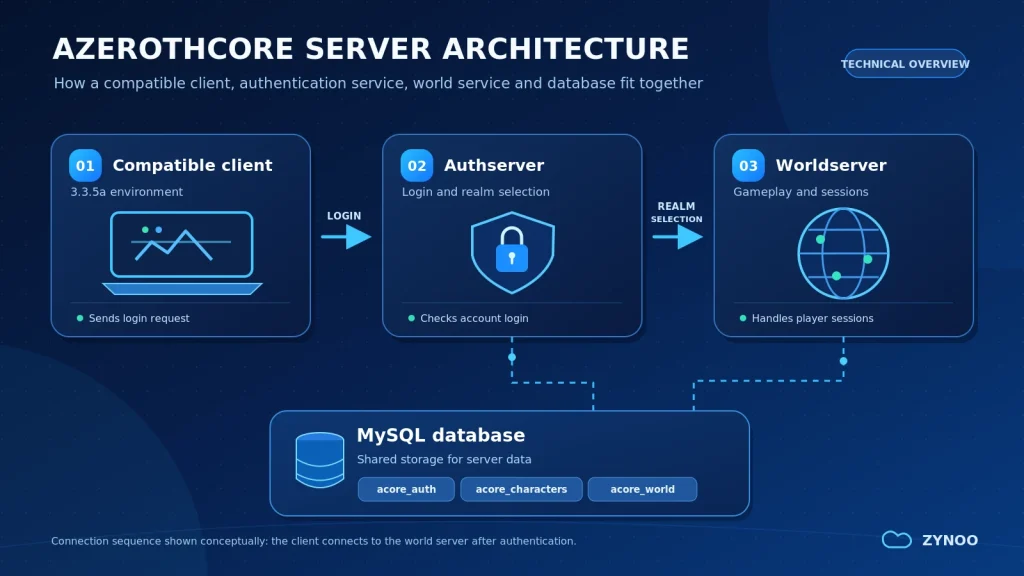
The software uses three primary components:
- Authserver: Handles login authentication and realm selection.
- Worldserver: Manages game-world activity, characters, and gameplay systems.
- MySQL database: Stores authentication records, characters, and world information.
Both server applications communicate with MySQL and can run on the same machine.
AzerothCore provides server software but does not provide a licensed World of Warcraft game client or the rights to redistribute Blizzard’s assets.
World of Warcraft Server Requirements
AzerothCore’s requirements depend on your installation method and workload. Compiling the software generally requires more resources than running a small testing environment.
For a Linux development or testing setup, consider these starting specifications:
| Resource | Suggested Configuration |
|---|---|
| CPU | 4 vCPU or more |
| RAM | 8 GB or more for compilation |
| Storage | 60–100 GB SSD or NVMe |
| Operating system | Ubuntu 26.04 LTS |
| Database | MySQL 8.4 LTS |
| Compiler | GCC 15+ or Clang 18+ |
These hardware figures are practical starting estimates rather than official minimums or guaranteed player capacities.
For this tutorial, we’ll use Ubuntu 26.04 LTS, which provides supported MySQL 8.4 packages through its repositories.
The installation also requires administrative access and familiarity with basic Linux commands.
Step 1: Prepare Your Linux Server
Connect to your Linux environment through SSH:
ssh admin@YOUR_SERVER_IPReplace admin with your username and YOUR_SERVER_IP with your server’s actual address.
Update the system:
sudo apt update
sudo apt upgrade
Next, install the dependencies documented for Ubuntu 26.04:
sudo apt install git cmake make gcc g++ clang \
libstdc++-16-dev default-libmysqlclient-dev \
libssl-dev libbz2-dev libreadline-dev \
libncurses-dev mysql-server libboost-all-dev tmux
Check that MySQL is running:
sudo systemctl status mysqlYou can also verify the compiler and database versions:
clang --version
mysql --version
Make sure they satisfy AzerothCore’s current requirements before continuing.
Use a regular Linux account for compiling and running AzerothCore rather than operating the application as root.
Step 2: Download and Compile AzerothCore
Download the official source code from GitHub:
git clone https://github.com/azerothcore/azerothcore-wotlk.git \
--branch master --single-branch ~/azerothcore
Enter the project directory and create a separate build directory:
cd ~/azerothcore
mkdir build
cd build
Configure the build using CMake:
cmake .. \
-DCMAKE_INSTALL_PREFIX="$HOME/azerothcore/env/dist/" \
-DCMAKE_C_COMPILER=/usr/bin/clang \
-DCMAKE_CXX_COMPILER=/usr/bin/clang++ \
-DTOOLS_BUILD=all \
-DSCRIPTS=static \
-DMODULES=static
If the configuration succeeds, compile AzerothCore:
make -j2The -j2 option limits compilation to two parallel jobs, reducing memory pressure compared with using every available CPU thread.
If your server has limited RAM and compilation fails due to memory exhaustion, try make -j1.
Once compilation finishes, install the binaries:
make installThe installed files should now be available under:
~/azerothcore/env/dist/
The bin directory contains the server applications and compiled tools.
Step 3: Configure the MySQL Database
AzerothCore uses three databases:
acore_auth— authentication and account information.acore_characters— character and player data.acore_world— game-world information.
For a new installation, AzerothCore provides an SQL script for creating the databases and database user.
Run:
sudo mysql < ~/azerothcore/data/sql/create/create_mysql.sqlOnly use this initialization script on a fresh installation. The script also recreates the default database user, which could disrupt existing configurations.
The script creates an acore account with a default password. Change that password before using the installation.
Open MySQL:
sudo mysqlChange the account password:
ALTER USER 'acore'@'localhost'
IDENTIFIED BY 'YOUR_STRONG_PASSWORD';
Replace the placeholder with a strong, unique password. Keep it private and update the corresponding database credentials in the configuration files.
Exit MySQL:
EXIT;AzerothCore includes an automatic database updater that initializes and updates the required tables when the relevant server processes start.
You don’t need to manually import every database update file.
Step 4: Prepare the Required Game Data
AzerothCore requires game-world data compatible with the 3.3.5a environment.
This is separate from the open-source server code and requires particular care with proprietary assets and licensing.
The main data directories include:
| Directory | Purpose |
|---|---|
dbc | Game configuration and reference data |
maps | Terrain and map information |
vmaps | Collision and line-of-sight data |
mmaps | Navigation and movement data |
AzerothCore provides extraction tools for preparing this data from a compatible client installation where you have the necessary rights.
The extraction workflow uses tools such as map_extractor, vmap4_extractor, vmap4_assembler, and mmaps_generator. Follow the official Linux Server Setup instructions for the extraction process appropriate to your environment.
After completing the extraction, place the required directories in the configured data location.
The default setup commonly expects them alongside the installed worldserver binary under:
~/azerothcore/env/dist/bin/
Verify that the required directories exist before starting the world server.
Note: The open-source emulator’s license does not grant permission to download, share, or redistribute proprietary World of Warcraft client files.
Step 5: Configure Authserver and Worldserver
AzerothCore provides example configuration files for both services.
Navigate to the configuration directory:
cd ~/azerothcore/env/dist/etc/Create working copies:
cp authserver.conf.dist authserver.conf
cp worldserver.conf.dist worldserver.conf
Open the configuration files using your preferred text editor.
For example:
nano worldserver.confFind the database connection settings.
Their format is:
LoginDatabaseInfo = "127.0.0.1;3306;acore;YOUR_PASSWORD;acore_auth"
WorldDatabaseInfo = "127.0.0.1;3306;acore;YOUR_PASSWORD;acore_world"
CharacterDatabaseInfo = "127.0.0.1;3306;acore;YOUR_PASSWORD;acore_characters"
Replace YOUR_PASSWORD with the database password created earlier.
Configure LoginDatabaseInfo in authserver.conf as well.
Each entry identifies the MySQL host, port, username, password, and database name.
Next, check the DataDir option inside worldserver.conf.
If the required game-data directories are alongside the installed world-server binary, the default relative path may already be suitable. Otherwise, set DataDir to the correct directory.
Save the configuration files before proceeding.
Step 6: Start the World and Authentication Servers
AzerothCore includes startup scripts for managing the server processes.
For an interactive test, you can use tmux to keep each process in a separate terminal session.
First, create a session for the world server:
tmux new -s wow-worldInside that session, run:
cd ~/azerothcore
./acore.sh run-worldserver
On first startup, AzerothCore may prompt you to create or populate database tables. Follow the prompts and allow initialization to finish.
Check the output for database connection problems or missing game-data files.
To detach from the tmux session without closing the process, press Ctrl+B, followed by D.
Start a second session:
tmux new -s wow-authThen run:
cd ~/azerothcore
./acore.sh run-authserver
Both server processes should now be running in separate sessions.
You can list your sessions using:
tmux lsFor long-running deployments, use AzerothCore’s documented service-management options rather than relying solely on interactive terminal sessions.
Step 7: Create a Test Account
Once the world server starts successfully, you can create an account through its console.
Reconnect to the world-server session:
tmux attach -t wow-worldAt the world-server console, enter:
account create testuser YOUR_STRONG_PASSWORDReplace the example username and password with your chosen credentials.
AzerothCore also supports different permission levels for accounts.
For example, its account management commands can assign administrator privileges:
account set gmlevel testuser 3 -1Level 3 grants administrator privileges, while -1 applies the setting across all realms.
Use elevated privileges only for accounts that genuinely require them.
These are AzerothCore console commands, not regular Linux shell commands.
Step 8: Understand Realm Networking
AzerothCore uses two default TCP ports:
| Port | Service |
|---|---|
| 3724 | Authentication server |
| 8085 | World server |
It also maintains realm connection information in the realmlist table within acore_auth.
For local testing, the address may remain 127.0.0.1. For an authorized remote testing environment, the realm address must match the address reachable by the permitted client, and network access must be configured accordingly.
You can inspect the existing realm configuration through MySQL:
sudo mysqlThen:
USE acore_auth;
SELECT id, name, address FROM realmlist;
AzerothCore’s Networking documentation explains how realm addresses and network settings work.
Avoid exposing your database port to the public internet. If remote access is necessary for an authorized environment, restrict it through appropriate firewall or private-network rules.
AzerothCore targets the historical WoW 3.3.5a client protocol. Modern World of Warcraft clients are not interchangeable with that version. Client compatibility does not, by itself, establish permission to connect to an unofficial server.
Common World of Warcraft Server Setup Problems
Even when the software compiles successfully, configuration problems may prevent the services from starting.
| Problem | What to Check |
|---|---|
| Database connection failed | MySQL status, database credentials, user permissions |
| Worldserver cannot load maps | Missing or incorrectly located dbc, maps, or vmaps files |
| Realm unavailable | Authserver status and realmlist configuration |
| Connection refused | Server process, listening port, firewall |
| Compilation failed | Compiler version, dependencies, available RAM |
| Unexpected crashes | Startup logs, software version compatibility, resource limits |
For example, check available memory and storage with:
free -h
df -h
If you’re troubleshooting a build failure, rerun the relevant command and read the first meaningful error rather than focusing only on the final failure message.
For persistent issues, consult AzerothCore’s Common Errors documentation.
Keeping AzerothCore Updated and Secure
AzerothCore receives ongoing development updates, so installation requirements and configuration options may change.
Before updating an existing environment:
- Back up your MySQL databases and custom configurations.
- Review the project’s latest installation and update notes.
- Stop the relevant services gracefully.
- Update the source code and rebuild when required.
- Allow documented database updates to complete.
- Verify the server processes and review their logs.
You should also maintain operating system security updates, protect administrator credentials, restrict unnecessary network access, and test recovery procedures.
Avoid disabling automatic security updates entirely. Instead, plan maintenance windows and coordinate updates that could restart MySQL or other services.
Frequently Asked Questions
Yes. AzerothCore supports Linux and provides documentation for compiling and configuring its open-source server software. Using proprietary game assets or connecting a WoW client involves additional rights and licensing considerations.
No. The AzerothCore WotLK project targets the historical World of Warcraft 3.3.5a environment. Modern retail game clients are not directly compatible.
No. AzerothCore discontinued MariaDB support in September 2024. Its current documentation recommends MySQL 8.4 LTS.
Not necessarily. A development or test environment can run on a sufficiently powerful virtual machine. Resource requirements depend on compilation, installed modules, active services, and workload.
Blizzard’s End User License Agreement restricts unauthorized server emulation and connections. Open-source server software does not grant rights to Blizzard’s game client, artwork, or other proprietary content. Anyone considering an emulator environment should review the relevant licenses and obtain any required permissions.
Conclusion
Setting up a World of Warcraft server with AzerothCore involves much more than downloading an emulator and running two commands.
A functional technical environment requires compatible software, MySQL configuration, appropriate game data, correctly configured authentication and world services, and suitable networking.
By following the project’s current documentation and verifying each stage before proceeding, you can better understand how MMORPG server infrastructure works while avoiding many common installation mistakes.
Always distinguish open-source server technology from the proprietary content and permissions required to use it.