

DNS_PROBE_FINISHED_NXDOMAIN is a Google Chrome error that appears when your browser cannot find the domain name you’re trying to visit. It means the DNS lookup returned a result indicating that the requested domain doesn’t exist.
The error may be caused by a mistyped website address, incorrect DNS records, outdated cached information, or local network settings.
Fortunately, many cases are easy to diagnose. This guide explains seven ways to fix DNS_PROBE_FINISHED_NXDOMAIN on Windows and macOS, including what website owners should check when their domain stops working.
What Does DNS_PROBE_FINISHED_NXDOMAIN Mean?
DNS (Domain Name System) translates website addresses, such as example.com, into IP addresses that computers use to establish connections.
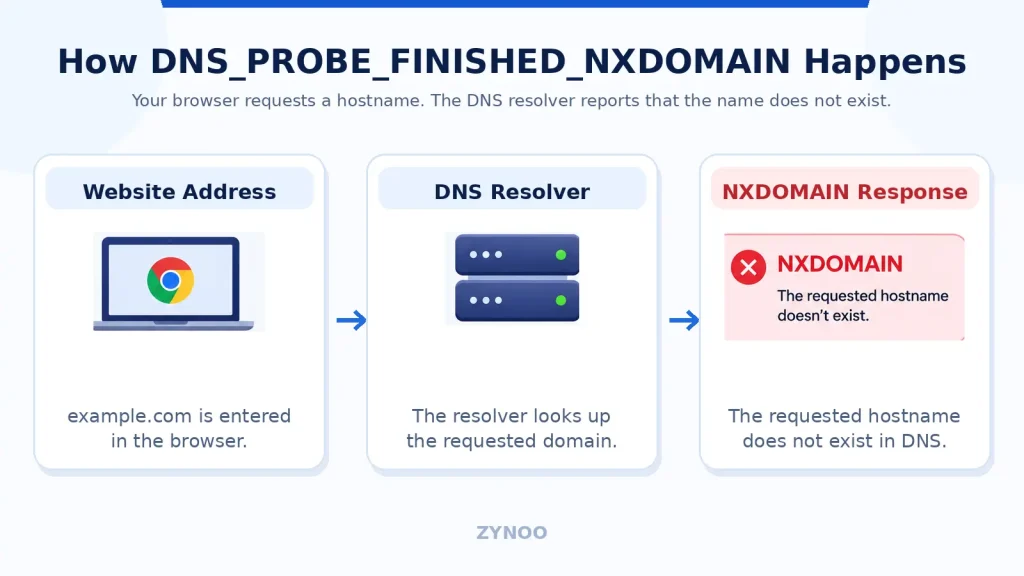
When you enter a domain into Chrome, your device asks a DNS resolver to locate it.
If the lookup returns NXDOMAIN, the resolver is reporting that the requested DNS name doesn’t exist.
This is different from a DNS server that fails to respond.
Common causes include:
- Incorrectly typed domain names.
- Missing or incorrectly configured DNS records.
- Expired or suspended domain registrations.
- Incorrect nameserver configuration.
- Outdated DNS cache entries.
- Local DNS resolver or network configuration problems.
The key is determining whether the error originates from your device or the website’s DNS configuration.
How to Fix DNS_PROBE_FINISHED_NXDOMAIN
Follow these seven methods, starting with the simplest checks.
1. Check the Website Address
Before changing any settings, carefully inspect the URL.
A small typing mistake can cause an NXDOMAIN response because the domain you’re requesting doesn’t exist.
Check for incorrect spelling, missing letters, or the wrong domain extension.
Also try opening the website with and without www.
If the website works on another device or network, the issue may involve your computer’s cached DNS information or resolver settings.
If it fails across multiple networks, investigate the domain itself.
2. Test the Domain Using nslookup
The nslookup command helps determine whether a DNS resolver can find a domain.
On Windows, open Command Prompt or PowerShell. On macOS, open Terminal.
Run:
nslookup example.comReplace example.com with the affected domain.
Next, test the same domain using Cloudflare’s public DNS resolver:
nslookup example.com 1.1.1.1Compare the results.
- Both return NXDOMAIN: The domain or hostname may genuinely be missing from DNS.
- Only your default resolver fails: Local DNS settings or cached information may be responsible.
- Both return valid IP addresses: Investigate your browser or connection settings.
Different resolvers can temporarily return different answers because of DNS caching.
3. Flush Your DNS Cache
Your computer stores previous DNS lookup results to improve performance.
Sometimes, cached negative responses remain after a domain’s DNS records have been corrected.
On Windows:
Open Command Prompt and enter:
ipconfig /flushdnsYou should receive confirmation that the DNS resolver cache was cleared.
On macOS:
Open Terminal and run:
sudo dscacheutil -flushcacheThen:
sudo killall -HUP mDNSResponderEnter your administrator password if requested.
Reopen Chrome and test the website again.
Remember that clearing your local cache doesn’t remove cached responses stored by external DNS resolvers.
4. Restart Your Router and Computer
Temporary network problems can affect DNS resolution.
Restart your computer first. If the error persists, restart your router and modem.
Disconnect their power for approximately 30 seconds, reconnect them, and allow the network to recover.
Don’t perform a factory reset, as that can erase your network configuration.
If the website still fails, continue with the next method.
5. Check Chrome Secure DNS and VPN Settings
Google Chrome supports Secure DNS, which encrypts DNS lookups using compatible providers.
However, an incorrectly configured custom DNS provider can sometimes cause lookup problems.
To review the settings:
- Open Chrome Settings.
- Navigate to Privacy and security → Security.
- Find Use secure DNS.
- Review the selected DNS provider.
- Try the automatic provider setting if a custom configuration is failing.
If you’re using a personal VPN, reconnect it or test another permitted location.
Avoid changing company-managed VPN or DNS settings without authorization.
Chrome’s Secure DNS setting is different from your operating system’s DNS configuration, so both may need investigation.
6. Change Your DNS Resolver
If your current DNS provider is returning incorrect or outdated information, testing another trusted resolver can help.
Two commonly used services are:
| Provider | Primary DNS | Secondary DNS |
|---|---|---|
| Cloudflare | 1.1.1.1 | 1.0.0.1 |
| Google Public DNS | 8.8.8.8 | 8.8.4.4 |
On Windows 11:
Go to Settings → Network & internet, select your active Wi-Fi or Ethernet connection, and choose Edit beside DNS server assignment.
Select Manual, enable IPv4, and enter the preferred DNS addresses.
On macOS:
Open System Settings → Network, select your connection, and navigate to Details → DNS.
Add your preferred resolver addresses and save the changes.
Record your original settings before making changes.
Important: Switching DNS providers won’t fix a domain that genuinely doesn’t exist in authoritative DNS. It’s useful primarily when the problem involves your current resolver or its cached responses.
7. Check Domain and DNS Records (Website Owners)
If you own the affected website, focus on its domain configuration.
Start with these checks:
Domain registration: Confirm the domain is active and hasn’t expired or been placed on hold.
Nameservers: Verify that your domain registrar points to the correct authoritative DNS provider.
DNS records: Check that the required hostnames exist. For example, example.com, www.example.com, and blog.example.com may need different records.
Recent DNS changes: If you recently added a hostname, some resolvers may still have a cached NXDOMAIN response.
You can inspect the domain’s nameservers using:
nslookup -type=NS example.comIf you use Cloudflare, open its DNS dashboard and verify that the required records are configured correctly.
Cloudflare’s DNS_PROBE_FINISHED_NXDOMAIN troubleshooting documentation also provides guidance for domains recently added to its platform.
After correcting the configuration, allow cached DNS responses to expire before concluding that the problem remains unresolved.
DNS_PROBE_FINISHED_NXDOMAIN vs DNS Server Not Responding
These two errors both involve DNS, but they describe different failures.
| Error | Meaning |
|---|---|
| DNS_PROBE_FINISHED_NXDOMAIN | DNS resolution indicates that the requested hostname doesn’t exist |
| DNS Server Not Responding | The configured DNS resolver isn’t responding to requests |
For example, an incorrectly configured subdomain may trigger NXDOMAIN, while an unreachable DNS resolver may produce a timeout.
Frequently Asked Questions
Chrome displays this error when DNS resolution reports that the requested hostname doesn’t exist. Causes include incorrect domain names, DNS configuration problems, and cached or locally altered DNS responses.
Not necessarily. Your web server may be functioning normally while visitors cannot resolve the domain to reach it. Check DNS records and nameserver configuration before investigating server performance.
You can often resolve local configuration problems quickly. If you’ve corrected DNS records, previously cached negative responses may persist until their caching periods expire. There’s no universal resolution time.
Yes. An expired or suspended domain may stop resolving normally, depending on the registrar and registry’s policies. Verify your domain registration status if the error appears unexpectedly.
Conclusion
DNS_PROBE_FINISHED_NXDOMAIN indicates that a requested domain name cannot be found through DNS resolution.
For visitors, start by checking the URL, testing another network, flushing the DNS cache, and reviewing resolver settings.
For website owners, domain registration, nameserver delegation, and DNS records should be the priority.
The fastest way to resolve the error is to determine whether the hostname is genuinely missing from DNS or whether your device is receiving an incorrect or outdated response.