
If Minecraft is lagging, freezing, or crashing while loading mods, increasing its memory allocation may help.
To allocate more RAM to Minecraft, open your launcher settings and increase the maximum memory assigned to Minecraft: Java Edition. In the official launcher, this means changing the -Xmx value in the JVM arguments.
The steps differ slightly for CurseForge, Prism Launcher, and other modpack launchers.
Key Takeaways
- Minecraft: Java Edition lets you adjust RAM through launcher settings.
- The
-Xmxargument controls the maximum Java heap memory available to Minecraft. - Most standard Minecraft installations run comfortably with around 4 GB of allocated RAM.
- Larger modpacks may benefit from 6–8 GB, depending on their requirements.
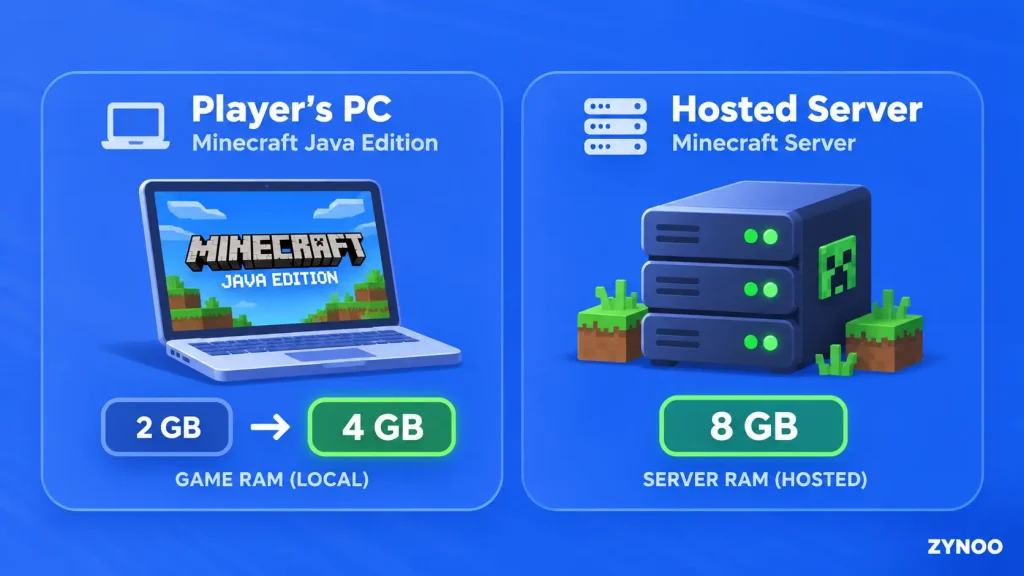
- Increasing RAM on your computer does not increase memory available to a hosted Minecraft server.
How Much RAM Should You Allocate to Minecraft?
Before changing settings, check how much physical RAM your computer has.
Here are practical starting recommendations:
| Total Computer RAM | Suggested Minecraft RAM |
|---|---|
| 4 GB | 2 GB |
| 8 GB | 3–4 GB |
| 16 GB | 4–6 GB |
| 32 GB | 6–8 GB for demanding modpacks |
These are general starting points, not fixed requirements. Follow the modpack developer’s recommendations where available.
Important: Never allocate all your computer’s RAM to Minecraft. Windows, macOS, background applications, and the Java runtime also need memory.
More RAM doesn’t automatically improve FPS, particularly when your CPU or graphics hardware is the bottleneck.
1. How to Allocate More RAM in Minecraft Java Edition
The official Minecraft Launcher lets you change memory allocation through JVM arguments.
Follow these steps:
- Open the Minecraft Launcher.
- Select Minecraft: Java Edition.
- Click the Installations tab.
- Find your installation, open its three-dot menu, and select Edit.
- Click More Options.
- Locate the JVM Arguments field.
- Find the value beginning with
-Xmx.
For example:
-Xmx2GChange it to:
-Xmx4GThis increases Minecraft’s maximum Java heap size from 2 GB to 4 GB.
Click Save and launch the game.
Before editing, save a copy of the existing JVM arguments. Only change the memory value and leave the other arguments intact.
Note: Newer Minecraft Java Edition versions may already default to 4 GB. Check the existing value before increasing it.
2. How to Allocate More RAM in CurseForge
CurseForge allows you to adjust memory globally or for individual Minecraft modpacks.
Change RAM for All Modpacks
- Open the CurseForge application.
- Click the Settings gear.
- Select Minecraft under Game Specific Settings.
- Find Allocated Memory in Java Settings.
- Move the slider to your preferred value.
CurseForge displays memory in megabytes (MB).
For reference:
- 4 GB = 4096 MB
- 6 GB = 6144 MB
- 8 GB = 8192 MB
Change RAM for One Modpack
If only one modpack needs additional memory:
- Open My Modpacks.
- Select the modpack.
- Open its three-dot menu and choose Profile Options.
- Disable Use System Memory Settings.
- Adjust the memory slider.
This overrides the global memory allocation for that specific profile.
3. How to Allocate More RAM in Prism Launcher
Prism Launcher provides separate memory settings for individual Minecraft installations.
To change the default allocation:
- Open Prism Launcher.
- Go to Settings → Java.
- Find the Memory section.
- Increase Maximum Memory Allocation.
- Save your settings.
To change a single instance, select it and click Edit → Settings → Java. Enable the memory override and adjust its maximum allocation.
Prism Launcher also provides a Java test option to help check your runtime configuration.
4. How to Allocate More RAM in ATLauncher
ATLauncher offers a straightforward memory setting:
- Open ATLauncher.
- Go to Settings → Java/Minecraft.
- Find Maximum Memory/RAM.
- Enter your desired allocation.
- Click Save.
You can also configure memory separately for individual instances through their settings.
For larger modpacks, check their recommended RAM before changing the default.
How to Allocate More RAM to a Minecraft Server
There’s an important difference between Minecraft client RAM and server RAM.
Changing memory settings in your launcher only affects Minecraft running on your computer. It does not increase the RAM allocated to a multiplayer server hosted elsewhere.
If you manage a self-hosted Minecraft Java server, you can configure its memory through its startup command.
For example:
java -Xms2G -Xmx4G -jar server.jar noguiHere:
-Xms2Gsets the initial Java heap size to 2 GB.-Xmx4Glimits the maximum Java heap size to 4 GB.server.jarrepresents your Minecraft server application.
Make sure the server has enough memory available for Java, the operating system, and other processes.
If you’re using a hosting control panel, RAM may instead be controlled through its startup settings or hosting-plan limits.
Our Minecraft server setup tutorial explains how to install and configure a Java Edition server on Linux.
Beyond memory allocation, server administrators can also customize gameplay settings. For example, you can enable Keep Inventory on your Minecraft server to prevent players from losing their items and experience after death.
Why Is Minecraft Still Lagging After Adding RAM?
Increasing memory won’t solve every performance issue.
If Minecraft remains slow, check these common causes:
- Insufficient CPU or GPU performance: Lower render distance and demanding graphics settings.
- Too many mods: Disable unnecessary mods and check compatibility.
- Incorrect Java version: Use the Java runtime required by your Minecraft version or modpack.
- Excessive RAM allocation: Reduce the maximum heap size if your operating system is running low on available memory.
- Server-side lag: Check the multiplayer server’s CPU, memory, and tick performance rather than changing your client allocation.
You can also press F3 in Minecraft Java Edition to view debugging information, including memory usage.
Does this work for Minecraft Bedrock Edition?
No. Bedrock Edition doesn’t use the same Java launcher or JVM arguments. The instructions above apply to Minecraft: Java Edition.
Final Thoughts
Learning how to allocate more RAM to Minecraft is straightforward once you know where your launcher stores memory settings.
For most players, 4 GB is a practical starting point, while larger modpacks may need additional memory.
Increase the allocation gradually, test performance, and avoid using all available system RAM.
If you’re experiencing lag on a multiplayer server rather than your own computer, read our game server hosting guide to understand how server hardware affects gameplay.