Want to learn how to make a Minecraft server on a Linux VPS? Hosting your own server lets you create a multiplayer world, invite friends, control game settings, and install compatible plugins or mods without depending on public servers.
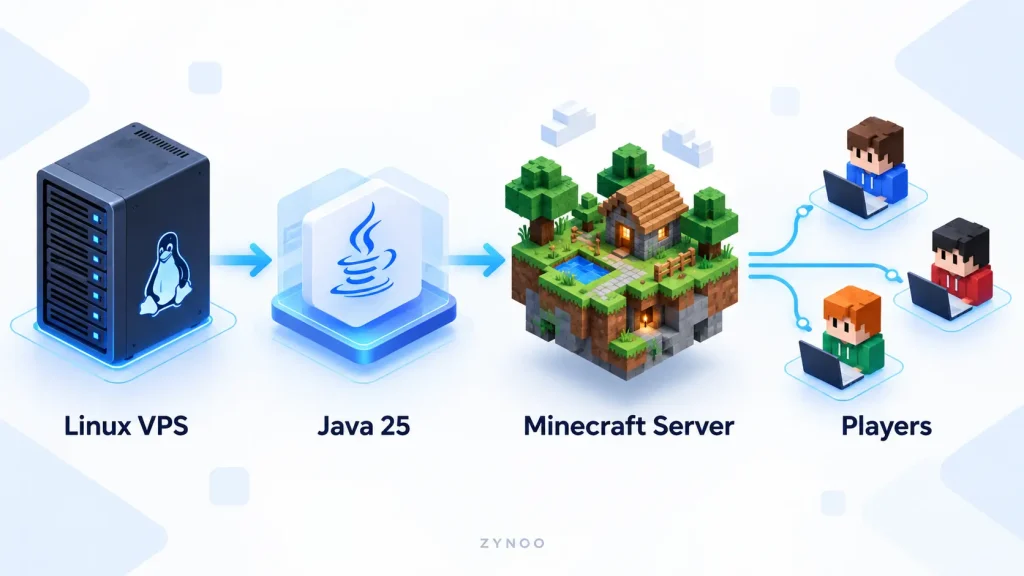
The setup is straightforward once you have the right software. You’ll need a Linux server, a compatible Java version, the official Minecraft server file, and a few terminal commands.
This guide walks you through setting up Minecraft: Java Edition on Ubuntu 26.04 LTS, from installation to connecting your first players.
What Do You Need to Host a Minecraft Server?
Before getting started, make sure your server has enough resources for the game and your expected players.
Here are practical starting specifications for a small, unmodded Minecraft server:
| Resource | Recommended Starting Point |
|---|---|
| Operating system | Ubuntu 26.04 LTS |
| CPU | 2 vCPU or more |
| RAM | 4 GB |
| Storage | 20–30 GB SSD or NVMe |
| Java | Java 25 |
| Network | Stable connection with TCP port 25565 available |
These are starting recommendations, not guaranteed player capacities. Larger worlds, more players, and modded environments may require additional CPU and RAM.
For hosting outside your home network, a Linux VPS is a convenient option because it provides an independent environment that can remain online without your personal computer.
Important: This tutorial covers Minecraft Java Edition. Minecraft Bedrock Edition uses different dedicated server software and networking requirements.
Step 1: Connect to Your Linux VPS
First, connect to your server using SSH.
Open Terminal on Linux or macOS, or PowerShell on Windows, and enter:
ssh admin@YOUR_SERVER_IPReplace admin with your server username and YOUR_SERVER_IP with its actual address.
Once connected, update the package index:
sudo apt updateInstall the required software:
sudo apt install -y openjdk-25-jre-headless tmux nanoJava 25 is required for Minecraft Java Edition 26.1 and newer.
Verify your Java installation:
java -versionThe output should identify Java 25. If another version appears, verify which Java installation is active before continuing.
Step 2: Download the Official Minecraft Server
Create a dedicated directory for your Minecraft server:
mkdir -p ~/minecraft-server
cd ~/minecraft-server
Next, visit the official Minecraft Java Edition server download page.
Download the current server .jar file and rename it server.jar on your computer.
The official download address changes between releases, so avoid outdated links from older tutorials.
Upload the file to your Linux VPS using SFTP or SCP.
For example, from your local computer’s terminal, run:
scp ~/Downloads/server.jar admin@YOUR_SERVER_IP:~/minecraft-server/Adjust the local file path, username, and IP address to match your setup.
After uploading, reconnect to your server and confirm the file exists:
cd ~/minecraft-server
ls -lh server.jar
You’re now ready to launch Minecraft for the first time.
Step 3: Run Minecraft and Accept the EULA
Start the server using:
java -Xms1G -Xmx2G -jar server.jar noguiThe memory options control Java’s heap allocation:
-Xms1Gsets the initial heap size to 1 GB.-Xmx2Glimits the maximum heap to 2 GB.noguiruns the server without a graphical interface.
This is a reasonable initial heap configuration on a 4 GB VPS, leaving memory for the operating system and other processes.
On the first attempt, Minecraft creates an eula.txt file and stops because the End User License Agreement hasn’t been accepted.
Open the file:
nano eula.txtRead the Minecraft EULA. If you agree to its terms, change:
eula=false
to:
eula=true
Save the file using Ctrl + O, press Enter, and exit Nano with Ctrl + X.
Step 4: Configure Your Minecraft Server
Run the server again:
java -Xms1G -Xmx2G -jar server.jar noguiMinecraft will generate the world and required configuration files. The initial world generation may take some time.
Once the console reports that startup is complete, type:
stopThis shuts down the server gracefully.
Now open the configuration file:
nano server.propertiesReview these important settings:
| Setting | Purpose |
|---|---|
motd | Message displayed in the server list |
max-players | Maximum number of connected players |
gamemode | Default gameplay mode |
difficulty | World difficulty |
online-mode | Verifies player accounts |
white-list | Restricts access to approved players |
server-port | Network port used by the server |
For a small private server, you might use:
motd=My Private Minecraft Server
max-players=8
gamemode=survival
difficulty=normal
online-mode=true
white-list=true
server-port=25565
Keep online-mode=true so the server verifies legitimate Minecraft accounts.
Starting with Minecraft Java Edition 26.3, newly generated server configurations enable the whitelist by default. Players must be added to the whitelist before they can join.
Leave server-ip blank unless you specifically need to bind the server to a particular network interface.
Save your changes and exit the editor.
Step 5: Open the Minecraft Server Port
Minecraft Java Edition normally uses TCP port 25565 for multiplayer connections.
If you’re using UFW, check its status:
sudo ufw statusIf UFW is active, allow Minecraft traffic:
sudo ufw allow 25565/tcpYour hosting provider may also have a separate network firewall that must allow this port.
Don’t enable or reconfigure a firewall without confirming that your existing SSH access will remain available.
For a VPS with a public IP address, you generally don’t need home-router port forwarding.
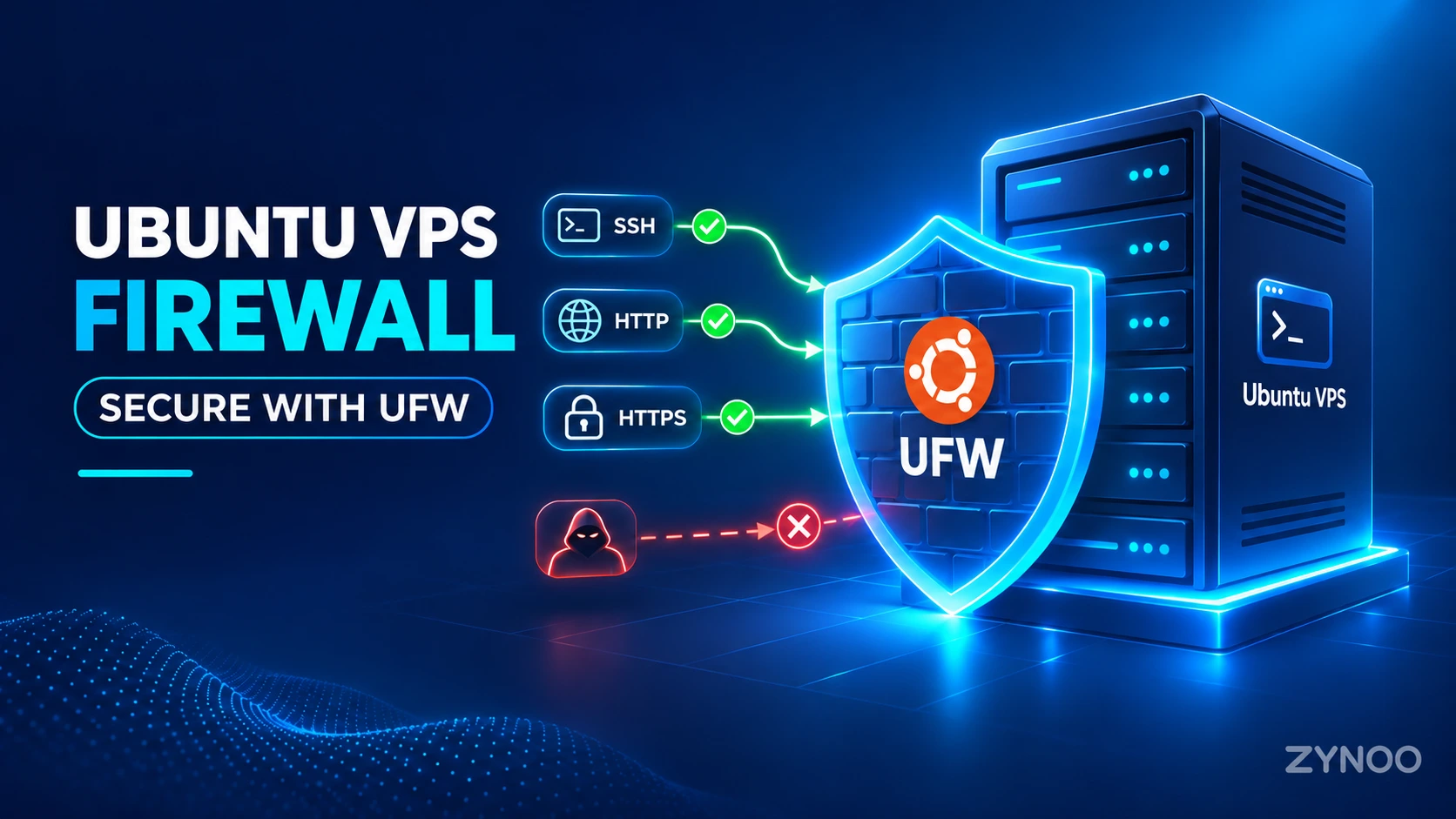
Opening the Minecraft port is only one part of securing your server. If you’re hosting on Ubuntu, our UFW firewall setup guide explains how to protect SSH access, configure default policies, and allow the ports your applications need.
Step 6: Keep Minecraft Running After Disconnecting SSH
If you launch Minecraft directly inside an ordinary SSH terminal, closing that session may stop the server.
One simple solution is tmux, which lets processes continue running in a detachable terminal session.
Start a session:
tmux new -s minecraftThen launch the server:
cd ~/minecraft-server
java -Xms1G -Xmx2G -jar server.jar nogui
Wait for the server to finish starting.
To detach while leaving it running, press Ctrl + B, then D.
To return to the console later:
tmux attach -t minecraftFor a permanent production environment, a properly configured systemd service with controlled restarts and logging is preferable to relying indefinitely on a terminal session.
Step 7: Add Players and Connect to Your Server
If the whitelist is enabled, add your Minecraft username from the running server console:
whitelist add YourMinecraftUsernameRepeat this command for each player you want to invite.
You can check the approved players with:
whitelist listNow open Minecraft: Java Edition on your computer.
- Select Multiplayer from the main menu.
- Click Add Server or Direct Connection.
- Enter your server’s public IP address.
- Use
YOUR_SERVER_IP:25565if you need to specify the port. - Connect using a compatible Minecraft Java Edition version.
Your client and server should use compatible game versions. Minecraft Bedrock clients cannot connect directly to a standard Java Edition server without additional cross-play software.
If the connection fails, check the server console, firewall settings, whitelist, and game version.
Step 8: Back Up and Maintain Your Minecraft Server
Minecraft worlds change constantly as players build and explore. Regular backups are essential.
Before creating a simple file backup, shut down the Minecraft server gracefully by entering stop in its console.
Then, from your Linux shell, run:
cd ~
tar -czf minecraft-backup-$(date +%F).tar.gz minecraft-server/
This creates a compressed backup of the server directory, including its configuration and world files.
Copy backups to a separate location so they remain available if the VPS storage fails.
For ongoing maintenance:
- Update Minecraft server software when compatible releases become available.
- Back up your world before changing versions or plugins.
- Keep Java and the Linux operating system updated.
- Monitor CPU, RAM, and disk usage.
- Restrict unnecessary network ports and administrative access.
Never replace your existing server files without keeping a recoverable backup.
Can You Install Minecraft Mods and Plugins?
Yes, but the software you choose determines what kind of customization is available.
Vanilla Minecraft: The official server software, suitable for a standard multiplayer experience.
Paper: A popular server implementation supporting plugins and additional configuration options. Its current versions also require Java 25.
Fabric or NeoForge: Mod-loading environments for servers that require compatible mods.
Plugins and mods aren’t interchangeable. Choose the server implementation that supports your desired extensions, and verify version compatibility before installing anything.
You can learn more about Paper from the official PaperMC documentation.
Common Minecraft Server Problems
| Problem | What to Check |
|---|---|
| Unable to access JAR file | Correct directory, filename, and file permissions |
| Unsupported Java version | Install the Java version required by your Minecraft release |
| EULA not accepted | Review eula.txt and accept the agreement |
| Players cannot connect | Firewall, port 25565, server status, and network settings |
| Not whitelisted | Add the player’s Minecraft username |
| Server lag | CPU load, memory use, plugins, and world activity |
| Server stops after SSH logout | Use tmux or a properly configured systemd service |
If you’re experiencing lag, check actual resource usage before immediately upgrading the VPS. Excessive world generation, incompatible plugins, or incorrect settings can also affect performance.
Frequently Asked Questions
The official Minecraft server software is free to download. However, renting a VPS or dedicated server involves hosting costs, and players need appropriate Minecraft licenses.
For a small vanilla server, 4 GB of total VPS RAM is a practical starting point. Heavily modded servers or larger communities may need considerably more.
Yes. Minecraft Java Edition supports Linux server environments when a compatible Java runtime and sufficient resources are available.
Yes. A Minecraft server running on a VPS operates independently of your personal computer, provided the VPS and server process remain online.
Conclusion
Learning how to make a Minecraft server on Linux gives you greater control over your multiplayer experience, from world settings and player access to plugins and server maintenance.
With a compatible Java version, official server software, properly configured networking, and regular backups, you can build a reliable environment for playing with friends.
Start with a small server, test it with a few players, and expand resources only when your world and community need them.